
Spreadsheets
1 Introduction
This chapter looks at the use and functions of spreadsheets
2 The spreadsheet system
Spreadsheets present users with a grid. Each column is denoted by an alphabetical character and each row by a number. This system of co-ordinates allows a cell to be defined:
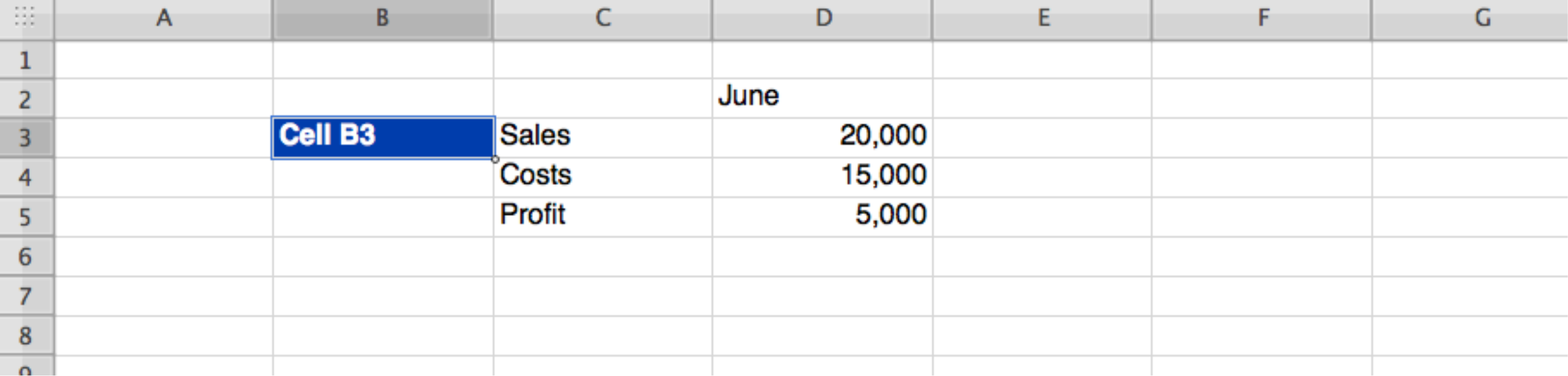
Cells can contain:
Numbers: cells D3 and D4 above
Labels (text): cells D2 and C3..C5 above
Formulae: cell D5, although displaying 5,000 could actually contain the formula
=D3 – D4
Formulae give spreadsheets their great power because calculations can be automatically updated. Therefore, in the example above if the contents of cell D3 were changed to 21,000 then cell D5 would automatically display 6,000
Formulae can be complex and can contain ready-made functions such as functions to average the contents of cells or to add up a column or row.
Formulae always start with ‘=’. This tells the program that what follows is a formula and not a word beginning D3...., in cell D5 above.
2.1 The parts of the spreadsheet window
Besides the grid itself, you should be able to name these parts of a blank spreadsheet screen:
The name box, at the left of the formula bar, shows the reference of the cell you are on (and can be typed in to jump to a cell or a named range).
The formula bar, along the top, shows what the active cell actually CONTAINS. This matters: the cell may display 5,000 while the formula bar shows =D3-D4.
The ribbon (or menu bar), grouped into tabs such as Home, Insert, Formulas, Data, Review, View and Page Layout.
The worksheet tabs at the foot of the window, one per worksheet, with a button to add another.
The status bar at the very bottom, which shows quick totals (sum, average, count) of whatever you have selected.
The scroll bars at the right and foot of the grid, and the column letter and row number headers around it.
3 The role of spreadsheet in management accounting, and their advantages and limitations.
Spreadsheets can be used to great advantage in many parts of management accounting.
For example:
Budgeting: budgets are always subject to estimates and changes. Because formulae automatically update calculations, new budgets can quickly be produced.
What-if queries: for example, what-if sales decrease by 5%. Again these experiments can be carried out very quickly.
Variance analysis: comparison of actual and budgeted results and the highlighting of variances.
Production of graphics: all spreadsheets allow fast production of graphs and charts.
Spreadsheets can be limited in the following areas.
If incorrectly constructed they will give incorrect results
Errors can be hard to discover.
They are not suitable for large amounts of data, such as all the information held on customers. There, a database package would be more suitable.
4 The information that is needed in spreadsheets and how it should be structured.
Apart from labels (descriptions) the information needed in spreadsheets is of three types:
1) Estimates
2) Definite data
3) The relationships that hold between pieces of data
These three together will produce the results of the spreadsheet.
For example:
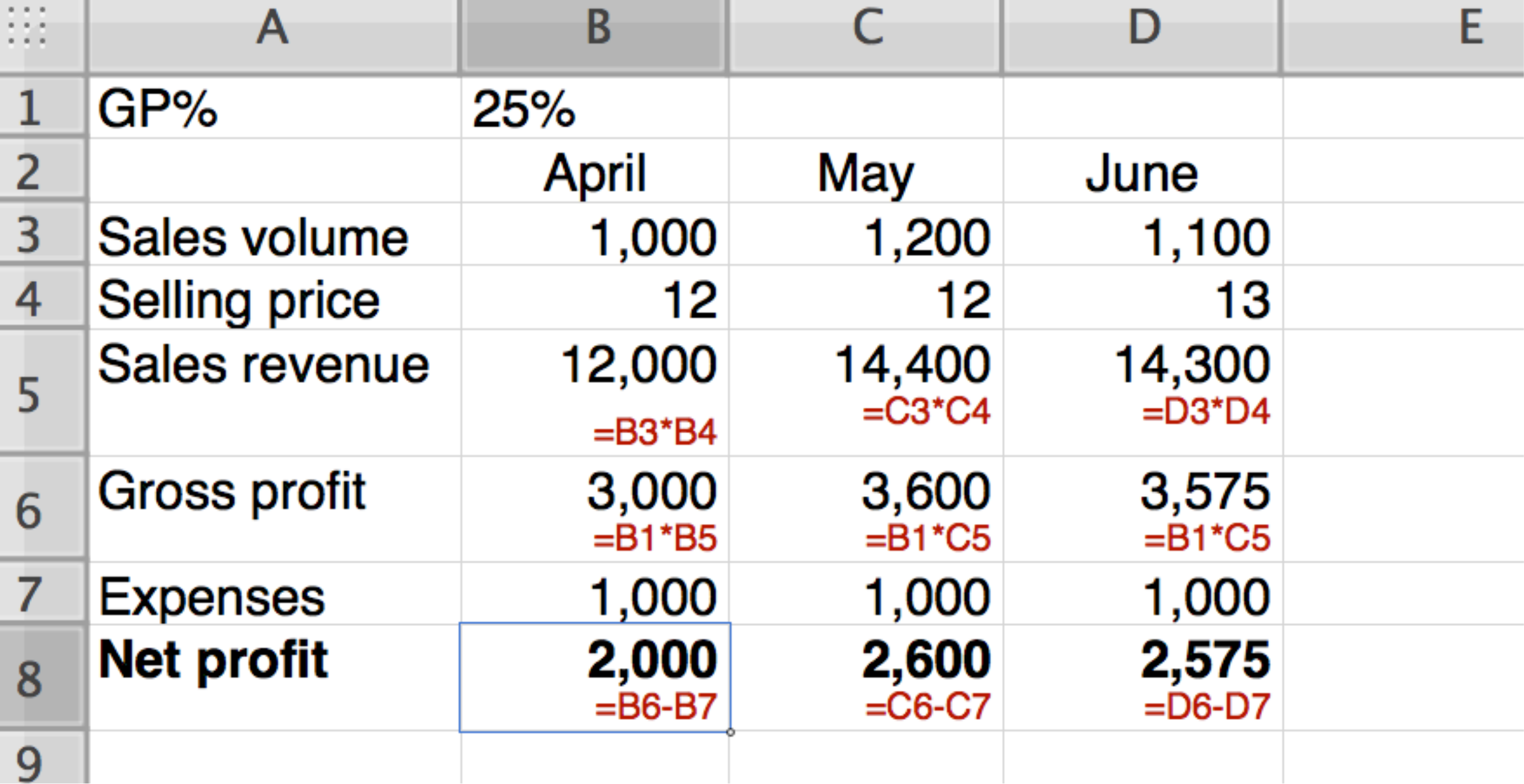
Presumably the sales volumes are estimates
The selling prices and GP% could be definite data (or estimates)
The sales revenues and gross profits are calculated data. Here the formulae underlying the numbers displayed are shown in small type in each cell, but the formulae would not be displayed like this on a real spreadsheet.
Rules for structuring the data are:
Never enter the same figure more than once. So here, the GP% is recorded once only. That means it will be consistently used and will be easy to change.
Do not type in any figure that could be calculated from others on the spreadsheet.
Ensure the data is well-labelled so that it is understandable.
Information is usually entered by clicking on the cell then typing in the data.
4.2 Ways of giving a spreadsheet an instruction
There is nearly always more than one way to do the same thing, and the exam can ask about any of them:
The ribbon or menu: click the tab, then the button.
A right-click on the selection, which opens a context menu of the commands that apply to it (insert, delete, format cells, paste special).
A dialogue box, opened from a small arrow at the corner of a ribbon group, for the fuller set of options (for example Format Cells).
Keyboard shortcuts: Ctrl C copy, Ctrl V paste, Ctrl X cut, Ctrl Z undo, Ctrl S save, Ctrl F find, Ctrl H replace, Ctrl A select all.
Function keys: F1 help, F2 edit the active cell, F4 toggle absolute/relative references while writing a formula, F12 Save As.
Typing directly into the cell or into the formula bar.
4.3 Selecting cells and ranges
One cell: click it.
A block: click the top-left cell and drag to the bottom-right, or click the top-left cell then Shift-click the bottom-right one.
Extending a selection from the keyboard: Shift with the arrow keys, or Ctrl+Shift+arrow to run to the end of a block of data.
A whole column or row: click its letter or number header; drag across headers for several.
The whole sheet: Ctrl A, or the small triangle where the row and column headers meet.
Cells that are not next to each other: select the first range, then hold Ctrl while selecting the others.
However, spreadsheets allow information to be copied from one cell to others. So 1,000 can be entered into B7 then copied across to the other months.
Particularly useful is that when formulae are copied, their references are automatically updated. Therefore if =B6 – B7 is entered in B8 and copied to C8 and D8, the formulae will automatically become =C6 – C7 and =D6 – D7.
4.4 Relative and absolute references
A reference like B6 is RELATIVE: when the formula is copied, the reference moves with it. That is usually what you want, and it is why =B6-B7 copied one column to the right becomes =C6-C7.
Sometimes it is not what you want. If the GP% is held once, in cell B1, and every month's gross profit is B1 times that month's revenue, then copying =B5*B1 across would look at C1, D1, E1 — which are empty.
A dollar sign freezes the part it is in front of, giving an ABSOLUTE reference:
$B$1 — neither the column nor the row moves. This is the usual form.
B$1 — the column moves, the row does not.
$B1 — the row moves, the column does not.
So the formula to copy across is =B5*$B$1. Pressing F4 while the cursor is on a reference cycles it through the four forms.
4.5 Entering dates, and autofill
A date typed as 31/03/X4 is stored as a NUMBER — the count of days since the spreadsheet's start date — and merely displayed as a date. That is why dates can be subtracted from one another to give a number of days, and why a date that has been typed as text (and so is left-aligned in the cell) will not calculate.
Autofill saves typing a series. Select a cell, then drag the small square at the bottom-right corner of the selection — the FILL HANDLE. The spreadsheet continues the pattern it recognises: Jan, Feb, Mar…; Mon, Tue, Wed…; 2010, 2011, 2012…; Q1, Q2, Q3… Select two cells first (say 5 and 10) and it continues that step (15, 20). Dragging a cell that contains a formula copies the formula, adjusting its relative references.
4.6 Two more functions you are expected to know
ROUND(number, digits) rounds a value to the number of decimal places given. =ROUND(B6/B7,2) gives a figure to two decimals. ROUND changes the stored VALUE; number formatting changes only what is displayed, which is why two display-rounded figures can appear not to add up.
IF(test, value if true, value if false) chooses between two results. =IF(B6>B5,"Over budget","Within budget") — text results go in quotation marks, and the true result comes first.
4.7 Worksheets and workbooks
A WORKBOOK is the file. A WORKSHEET is one tab inside it. A workbook can hold many worksheets, and it is good practice to keep the data on one sheet, the workings on another and the report on a third.
A formula can refer to a cell on another worksheet by putting the sheet name and an exclamation mark in front of the reference:
=Sheet2!B4
and to a cell in another workbook by putting the file name in square brackets in front of the sheet name (in quotes if there is a space anywhere in it):
='[Book2.xlsx]Sheet1'!B4
A linked workbook is only as good as the file it points at: move or rename the other file and the link breaks.
Information in cells can be easily changed by clicking on the cell and re-entering or amending its contents.
There are three ways to edit what is already in a cell: click the cell and retype it (which replaces the whole contents); double-click it, or press F2, to put the cursor INSIDE the cell and change part of it; or click the cell and edit it in the formula bar, which is easier for a long formula. Ctrl Z undoes the last change, and can be pressed repeatedly.
To change the same thing in many places, use FIND AND REPLACE (Ctrl H). Type what to look for and what to put instead, then Replace to do them one at a time or Replace All to do them at once. Options let you limit it to the current worksheet or the whole workbook, match case, match the whole cell contents only, and search in values or in formulae. Replace All is quick and unforgiving — the usual advice is to Find first, check what it is hitting, and match whole cell contents where the text you are replacing could appear inside a longer word.
Whole ranges of cells can be specified for data entry, copying or formatting by their top left and bottom right corners. So copying a cell content to the range G3:J9 would copy into the 28 cells specified by those coordinates: G3, H3, I3, J3, all the way down to G9, H9, I9, J9.
5 Formatting tools
Correct formatting can greatly improve the usability of a spreadsheet and, indirectly its accuracy because errors should be easier to spot.
Typical formatting used is:
Setting the number of decimal places
Left, centre or right aligned contents in cells
Bold or coloured text
Coloured cell backgrounds
Underlinings
Size of text presented
Different column widths and heights
Here is an example of formatting:
GP% | 25% | ||
| April | May | June |
Sales volume | 1,000 | 1,200 | 1,100 |
Sales price | 12 | 12 | 13 |
Sales revenue | 12,000 | 14,400 | 14,300 |
Gross profit | 3,000 | 3,600 | 3,575 |
Expenses | 1,000 | 1,000 | 1,000 |
Net profit | 2,000 | 2,600 | 2,575 |
6 Formulae
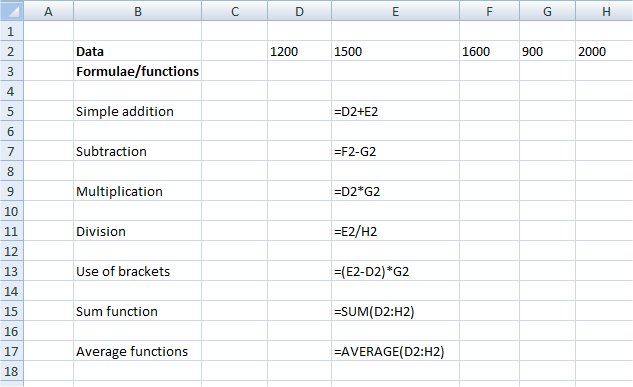
The following formulae are shown in the spreadsheet extracts shown below
Formulae | Description | |
Simple addition | =D2+E2 | Simple reference to the cells containing the data |
Subtraction | =F2-G2 | Simple reference to the cells containing the data |
Division | =E2/H2 | Simple reference to the cells containing the data |
Multiplication | =D2*G2 | Simple reference to the cells containing the data |
Use of brackets | =(E2-D2)*G2 | Calculations inside the brackets are performed first |
Sum function | =SUM(D2:H2) | Sums all the cells from one cell reference to the other |
Average functions | =AVERAGE(D2:H2) | Averages all the cells from one cell reference to the other |
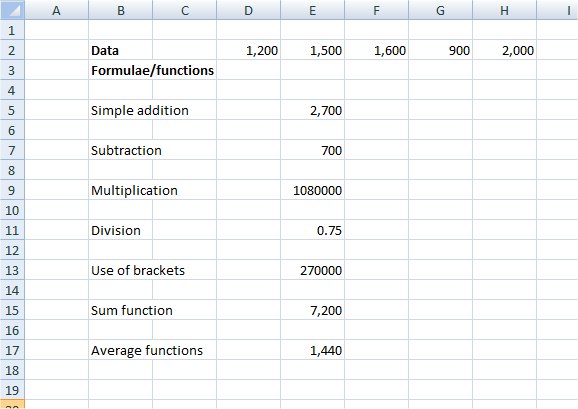
Here is the spreadsheet again, Showing the formulae behind the amounts displayed.
AVERAGE of a single total cell returns that total, not the average of the underlying entries. Either average the original range or divide a correctly calculated total by the number of items—never do both.
7 Errors
Most spreadsheets have error reporting facilities. The more sophisticated tools allow formulae to be traced from cell to cell. However, even as data is entered into spread sheet cells some errors will be reported.
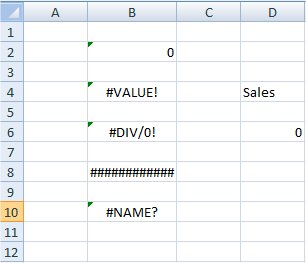
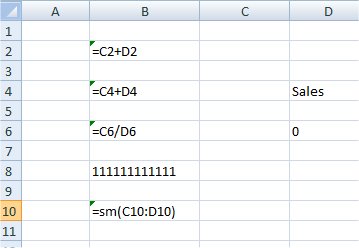
In the extract below from an Excel spreadsheet, the small triangles at the top left of B2, B4 and so on indicate that there could be a problem. The second spreadsheet shows the formulae that lie behind the problem cells.
Cell B2 Contains a calculation using cells that have no values yet; C2 and D2 are empty
Cell B4 Tries to perform a calculation on a label, the word ‘Sales’
Cell B6 Tries to divide by zero (Cell D6)
Cell B8 Contents too large to be shown in the cell. This is easily fixed by making the column wider.
Cell B10 Contains an unknown function name.
Should be =Sum(C10:D10)
Additionally, you might sometimes be warned about circular references. For example, if you were to enter the following in Cell C12:
=C12 + D12
Then the answer to cell C12 depends on the contents of cell C12 and the spreadsheet would warn you about that, or not permit that formula to be entered.
Use =IF(test,"result if true","result if false"). Text outputs require quotation marks, and the true/false results must be the right way round. A #NAME? error commonly signals unquoted text or another formula-writing error.
8 Linking and embedding data from different sources
In addition to linking spreadsheets to word processors it is possible to link several spreadsheets together. For example, there could be a spreadsheet for each of three branches, then a fourth where the results of the branches are added together.
9 Storing and retrieving spreadsheets
Selecting ‘Save’ for the first time will prompt you to enter a name for the spreadsheet. Thereafter, ‘Save’ overwrites the previous copy of the spreadsheet.
‘Save as’ allows you to select a different name for the spread sheet. This can be useful if you want to keep several editions of the spreadsheet.
Retrieving is a simple matter of navigating to the folder where the spreadsheet was stored and clicking, or double-clicking, on it.
Most systems also provide a list of recently opened spreadsheets.
9.1 Protecting a spreadsheet with a password
Two different passwords can be set when a workbook is saved (File, Save As, Tools, General Options):
A password to OPEN. Without it the file cannot be read at all — the file itself is encrypted. Lose this password and the workbook is lost.
A password to MODIFY. The file can be opened without it, but only read-only: changes have to be saved under a different name.
These are different again from WORKSHEET protection, which is about stopping accidents rather than keeping people out: see chapter 12.
A password is a control, not a magic wand. It does not help if it is written on a note beside the screen, shared round the office, or never changed when someone leaves.
Spreadsheets
10 questionsAnswer the questions one at a time. Your progress is saved so you can leave and come back.
Open chapter practice