
Presenting information in spreadsheets
1 Introduction
This chapter looks at how information can be displayed as graphs and charts and how spreadsheet information can be printed out.
2 Methods of summarising and analysing spreadsheet data
Spreadsheets have basic data handling facilities that allow data to be sorted, ranked and filtered
2.1 Sorting
Sorting: this function allows a range of data to be sorted into ascending or descending order. For example:
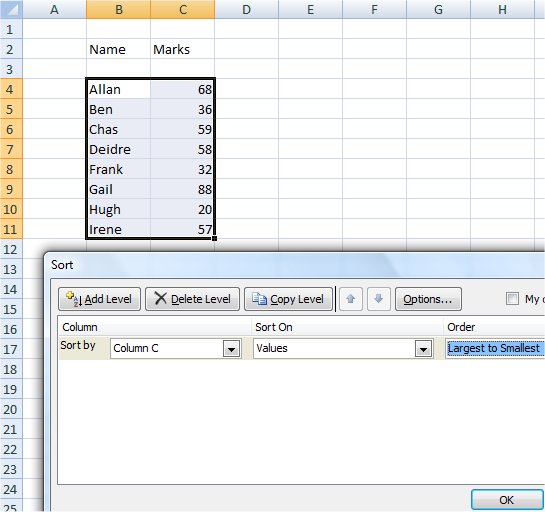
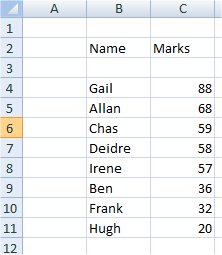
When sorted by column C, the result will be:
2.2 Filtering
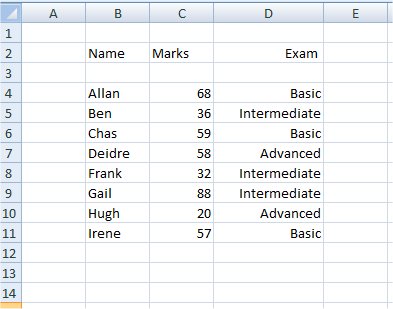
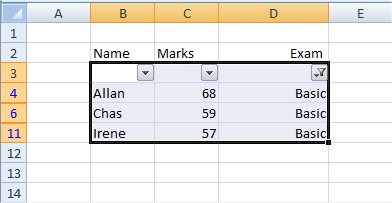
Filtering: this allows you to look at only certain (filtered data). Say that in the spreadsheet shown below, you wanted to see only results relating to Basic exams.
Turning on the filtering function for the range of cells will show drop-down lists:
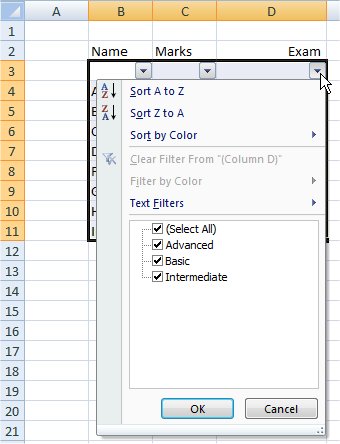
If Advanced and Intermediate are unselected, leaving only Basic, then the result will be:
3 Charts and graphs
All spreadsheet programs allow charts and graphs to be easily prepared.
A chart is made from a RANGE. Select the data including its row and column labels, then Insert and the chart type. The labels become the category axis and the legend, which is why it is worth selecting them rather than the numbers alone. The chart is linked to the range: change a figure and the chart redraws itself.
Which chart to use depends on the question being asked:
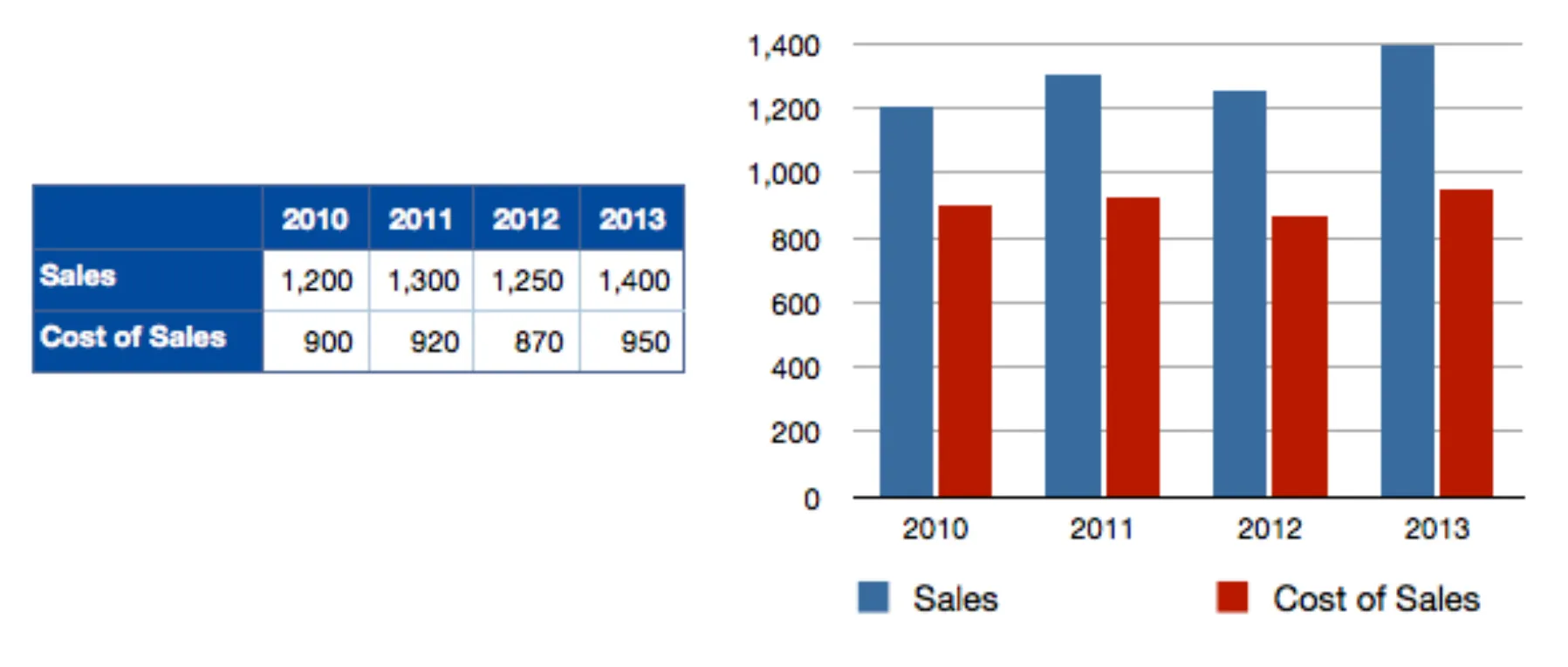
A COLUMN chart has vertical bars and is the usual choice for comparing a few categories, or the same measure over a few periods.
A BAR chart is the same thing lying on its side, with horizontal bars. It suits long category names, and a ranking.
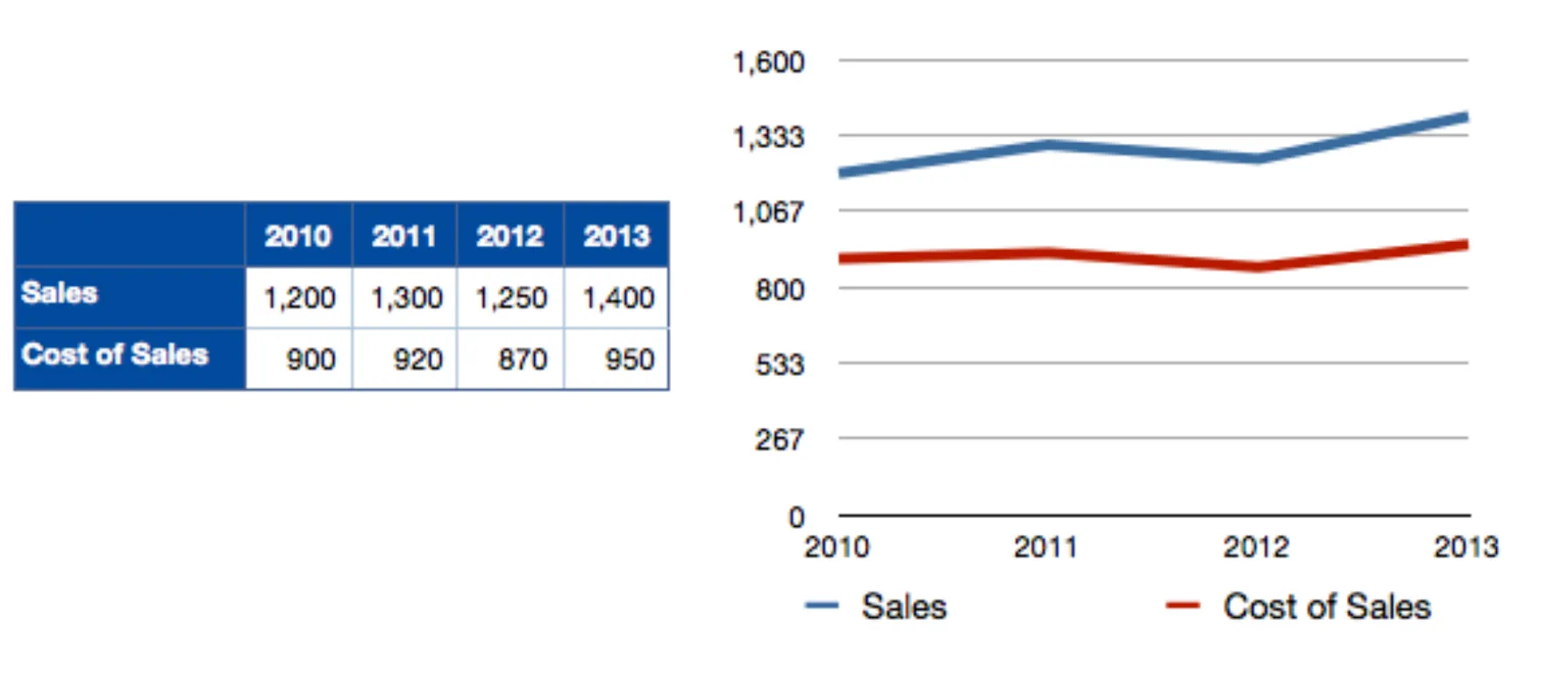
A LINE chart joins the points up and is for showing a TREND over time. Do not use it where the horizontal axis is not a sequence.
A PIE chart shows how one total splits up. It needs parts of a single whole, and it stops being readable past about six slices.
An AREA chart is a line chart with the space under the line filled in, so it shows both the trend and the size of the total; stacked, it shows how the mix changes.
A SCATTERGRAPH plots pairs of values as separate points, with no line joining them, and is used to see whether two things move together — the classic use in management accounting is plotting total cost against activity level to see how the cost behaves.
3.1 Bar chart
3.2 Line chart
3.3 Scattergraph
3.4 Pie chart
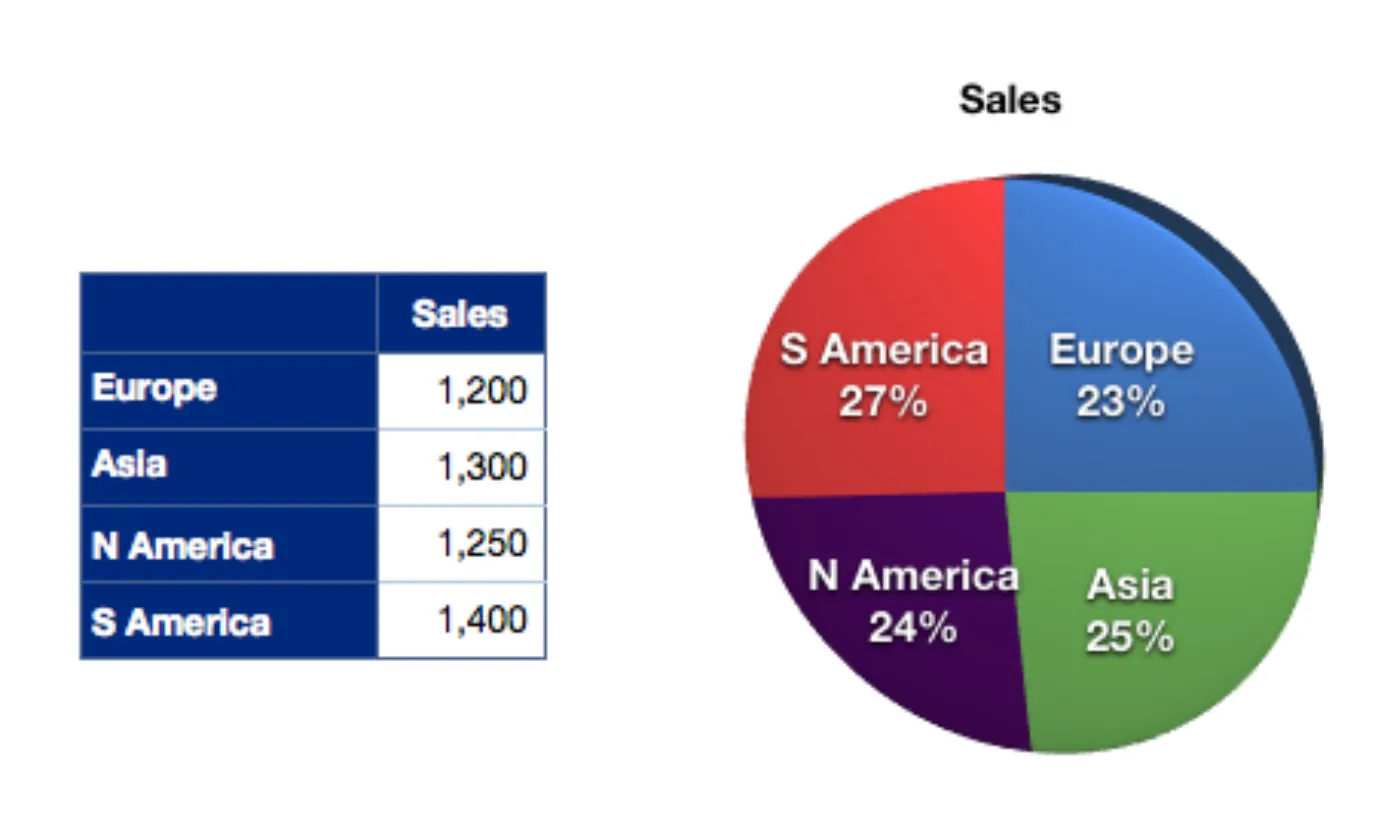
Charts have to be READ as well as drawn. Take the bar chart above: sales rose every year except 2012, cost of sales stayed roughly flat between 870 and 950, and so the gap between the two bars — the gross profit — widened over the four years. The line chart of the same figures makes the trend easier to see and the individual values harder to read off; the pie chart says nothing about the trend at all, but shows at once that the four regions are of a similar size, with South America largest at 27% and Europe smallest at 23%.
A chart can also mislead. An axis that does not start at zero exaggerates a small change; a pie chart of figures that are not parts of one whole means nothing; and a chart of two series on very different scales hides the smaller one.
4 Adding comments to a cell
A COMMENT (called a note in some versions) is a small piece of text attached to a cell. The cell shows a small coloured triangle in its corner, and the text appears when the pointer rests on it. Right-click the cell and choose New Comment (or Insert, Comment; the shortcut is Shift F2) to add one, and right-click again to edit or delete it. Comments do not print unless you ask for them, and they never affect a calculation.
Comments are how a spreadsheet is documented in the place where the documentation is needed. Use one to:
record the assumption behind a figure — 'inflation taken at 3%, per the board paper of 4 May';
record where a figure came from — 'per the supplier's quotation 14/3, expires 30/6';
leave a review point or a query for the next person — 'is this still the right rate?';
explain an unusual formula, so that whoever copies it understands it.
Do not use a comment for anything the reader must see — a comment is hidden until the pointer is over it, so a warning that matters belongs in a cell of its own.
5 Printing spreadsheets
In Excel, the printing controls are:
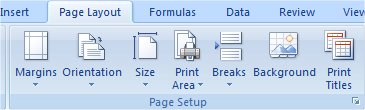
Margins: sets margins around what’s printed out.
Orientation: landscape or portrait paper orientation
Size: paper size eg A4, A3
Print area: allows specific areas to be printed
Breaks: specifies how the spreadsheet is to be split up for printing on different pages
Background: allows an image to be displayed as a background
Print titles: specifies rows and columns to repeat on each printed page.
6 Formatting cells
Formatting changes how a value is DISPLAYED; it does not change the value itself. A cell containing 0.12345 formatted to two decimals shows 0.12, but still calculates as 0.12345.
Number formats worth knowing: General; Number (with a chosen number of decimals and an optional thousands comma); Currency and Accounting (which lines the $ signs and the decimal points up); Percentage (which multiplies by 100 and adds a % sign — so 0.25 displays as 25% and 25 displays as 2500%); Date; and Text, which stops the entry being treated as a number at all.
Cells can also be given BORDERS — a line on any side, all round, or a heavy line under a total — and PATTERNS or fills, a background colour or shading used to mark input cells, headings or totals. Both are on the Home tab and in the Format Cells dialogue box.
7 Cell and worksheet protection
Protection stops somebody typing over a formula. It takes two steps, and the first one catches people out:
Every cell starts out marked 'locked'. Locking does nothing at all until the sheet is protected, so first UNLOCK the cells you want people to be able to type in (Format Cells, Protection tab, clear the Locked box).
Then protect the worksheet (Review, Protect Sheet), with a password if you want. From then on only the unlocked cells can be changed.
The same Format Cells tab has a 'Hidden' box, which hides the formula from the formula bar once the sheet is protected. Protect Workbook, separately, stops sheets being added, deleted, renamed or unhidden.
8 Rows and columns
Width and height: drag the boundary in the column letter or row number header, or double-click it to fit the widest entry. ##### in a cell means the column is too narrow, not that anything is wrong with the number.
Inserting: right-click a column letter or row number and choose Insert. The new column or row goes in BEFORE the one you clicked, and formulae elsewhere adjust themselves to the move.
Deleting: right-click and choose Delete. This is not the same as pressing the Delete key, which clears the contents but leaves the row or column in place. Deleting a row a formula points at leaves #REF! behind.
Hiding: right-click and choose Hide to take a row or column off the screen and off the printout while leaving it in the workbook, still calculating. Select the rows or columns on either side and choose Unhide to bring it back. Hiding is how workings are kept out of a report — but remember the hidden data is still in the file, so it is not a way of keeping anything confidential.
9 Working with a large worksheet on screen
Freeze panes (View, Freeze Panes) keeps chosen rows and columns in view while the rest scrolls. Everything ABOVE and to the LEFT of the selected cell is frozen, so to keep row 1 and column A, select cell B2 first. There are also one-click Freeze Top Row and Freeze First Column options.
Split (View, Split) divides the window into panes that scroll independently, so two distant parts of the same sheet can be compared.
Zoom changes the size of everything on screen without changing the printout.
New Window opens the same workbook twice so that two worksheets can be seen side by side.
Page Break Preview shows where the page breaks will fall, and lets them be dragged.
To retain specified top rows and left columns, select the first cell below those rows and immediately to the right of those columns before freezing. Visualise the boundary: everything above and left of the selected cell stays on screen.
Spreadsheet percentage format displays a value as a fraction of 1: 0.12 displays as 12%, while 12 displays as 1200%. Check the stored value before applying the format.
Presenting information in spreadsheets
9 questionsAnswer the questions one at a time. Your progress is saved so you can leave and come back.
Open chapter practice