The Bank Accounts
Changing the bank account name
Access the
bank areafrom the Navigation bar or the Modules menu.
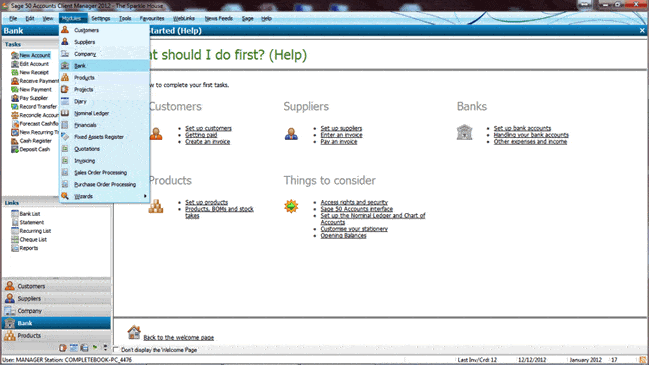
Easily amend bank account details by highlighting the required bank account and click on the
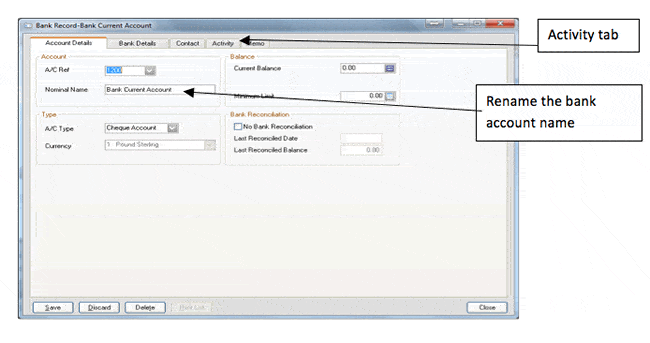
Record button. Here you can change the name of the bank and add an open balance. You may not require a bank reconciliation (i.e. used for a contra account) if so, tick the box for No bank Reconciliation. Additionally using the tabs bank address, contact and memo details can be added for future reference. The Activity tab confirms historical transactions.
Creating a New Bank Account
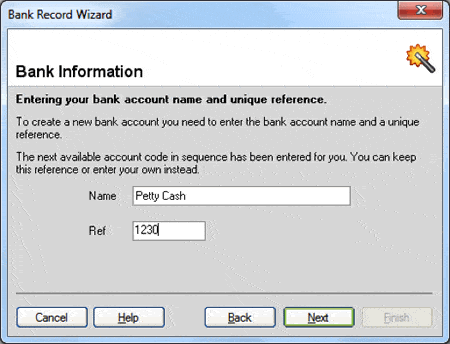
Use the Wizard to create a new bank account. I would always suggest thinking through carefully the number you require ensuring logic in your references (i.e. all bank accounts = 121x and credit cards = 124x). By creating from here a new general ledger account will automatically be created. Click next on completing each section.
The wizard will select the next available bank nominal code, this can be overtyped.
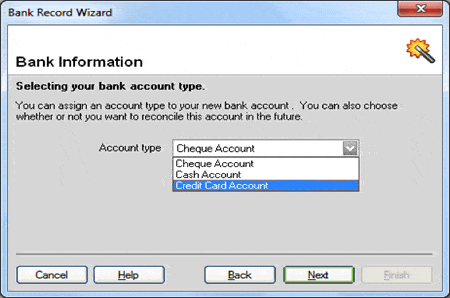
Use the down arrow to select the bank account type (Cheque, Cash or Credit card). Tick box if not bank reconcile is required.
Continue through wizard until the finish.
These tutorials are provided exclusively to OpenTuition.com by CBK Training, in Association with Complete Book-Keeping Ltd
** Book your Sage 50 Classroom Training - Ringwood **
Courses : Sage 50 : Credit Control : VAT : Sage Payroll Basics

Comments
Be the first to leave a comment.
Leave a comment