
Sage
Sage - Additional & Hiding Columns
Additional & Hiding Columns
Sage has the ability to suppress columns which are not utilised, from the batch data entry window. i.e. A/C, date, Ref, ex. Ref, N/C, dept, project ref, cost code, details, net, T/C & VAT. These can be easily hidden by using the right mouse click option, then un-tick the column. To show the column again just right mouse click and tick the option.
<h3>Some Columns explained:
A/C - partial entry will allow the active search pop up. Or press F4 for main index.
The Date - influences which accounting month the transaction is posted to, which VAT return it appears on and the ageing of transactions.
Ref – Enter the invoice number, maximum of 30 characters for this field.
Details - is a 60 character field for additional information. I the Active Search Popup feature is enabled it will show a list of previous entries.
T/C - the Tax code, this can be changed.
VAT - the VAT amount is calculated as soon as you enter the net amount, you can replace the automatic calculations with the value on the invoice where necessary.
For Example:
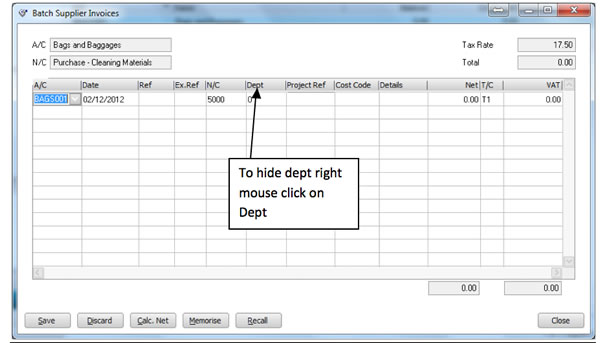
You are required to enter a supplier batch invoice. On entering the batch area various columns that will not be used are displayed. By moving your cursor to the “heading” line a drop down menu appears giving you the option to hide Ref, ex. Ref, N/C, dept, project ref, cost code, details. These are all options of “non critical” fields.
Comment
Leave a comment